Adobe Illustrator is a program used commonly by artists and graphic designers which can be used to create digital imagery. Within the program the user has the ability to create anything from freehand drawings to graphs and logos. Images created within the program are vector images which means they can be scaled to any size without losing quality. Instead of remembering pixels the program remembers shapes. When shapes are made in Illustrator they have a
path.
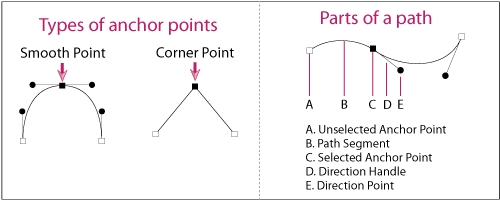
Paths are lines created in illustrator when something is drawn or created. They are made up one or more curved or straight lines that can be altered with great accuracy. Each segment has an anchor point at each end, which can be used to change the shape of a path or position of a segment. Anchor points can also be dragged to change the curvature of a segment.
Once a shape has been made it's appearence can be manipulated by changing the fill and stroke. The stroke of an object is it's outline and within Illustrator you can change it's thickness and colour in the stroke panel. You can also change it's apperance by giving the line a different style like denim stitching or making it dashed. Lastly the stroke panel can further alter the stroke by changing how the ends and corners of paths look (e.g. curved/bevelled/arrowheads). The fill is what goes inside of the object and it can be a colour or pattern. The fill can be selected at the bottom of the toolbar.




 -->
-->